The Return of the Leica Looks
When Leica introduced the Q3 a little over three years ago, they also introduced something called Leica Looks.
At first, there were only a handful available. You could download and install them through the Leica FOTOS app - which, by the way, is a great app - and over the years Leica has continued to add more.
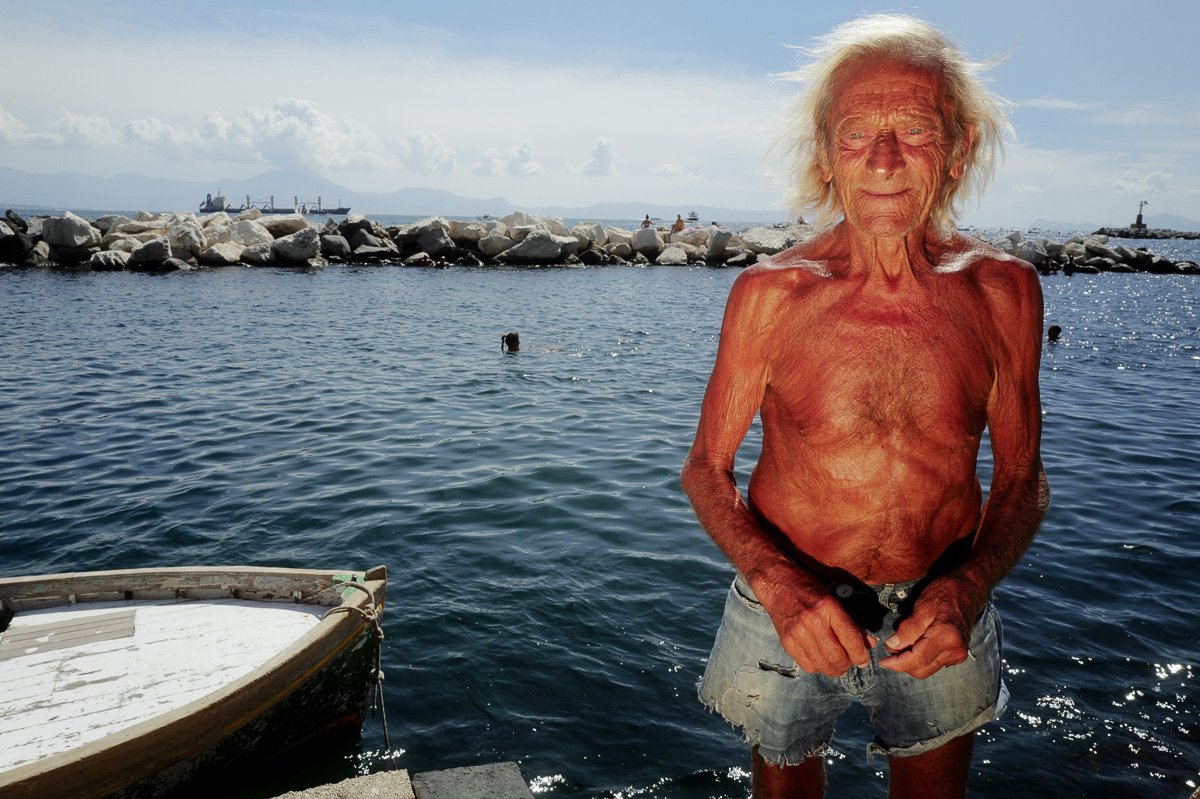
Leica Q3, RAW + Leica Contemporary Preset (Lightroom Export)
Today, there are 19 different Leica Looks to choose from. I tried them pretty much from the beginning, and some of them look absolutely lovely. But there have always been a few limitations.
For starters, Leica Looks are only available on the Q3 variants and the SL3, SL3-S and SL3-P. If you’re an M shooter or use a D-Lux 8, you’re out of luck. I’m not quite sure why Leica made that decision. It has always seemed a little strange to me.
There’s another, smaller limitation: you can only have nine Looks installed on the camera at a time. If you want to change them, you have to go into the FOTOS app, delete some of the installed Looks and replace them with new ones.
To be fair, that process is pretty quick, so it’s not a huge problem.
But there is one much bigger limitation. Leica Looks only apply to JPEGs. And if, like me, you prefer shooting RAW, that makes them much less useful.

Leica Q3, RAW + Leica Greg Williams Preset (Lightroom Export)
Bringing Leica Looks to RAW
I tried to solve this problem before. A while back, I recreated several Leica Looks for Lightroom and made them available for others to download and use.
Looking back at them now, I think they were pretty good. Some came surprisingly close to Leica’s JPEGs, and judging by the messages I received, quite a few of you enjoyed using them as well.
But there were only a few of them - just a fraction of the Looks that are available today. And ever since, I’ve received a lot of questions asking whether I would recreate the others. The problem is that doing this properly takes a lot of time. So this time, I decided to start over.

Leica Q3, RAW + Leica Cine Preset (Lightroom Export)
I took some time off and rebuilt the profiles from scratch, with the goal of not only improving them, but recreating all 19 Leica Looks.
In the end, the project took well over a month, with countless hours spent in front of my screen comparing colors, making adjustments and refining the profiles. And that doesn’t include all the hours spent taking reference images in the first place.
But now it’s finally done. All 19 Leica Looks in Lightroom I can finally present my complete collection of Leica Looks for Adobe Lightroom.
The collection includes:
Brass, Teal, Chrome, Classic, Contemporary, Eternal, Cine, Pure, Bleach, Silver, Greg Williams, Sepia, Selenium, Blue, Standard, Natural, Vivid, Monochrome and Monochrome HC.
The idea is simple: you get the character of Leica’s Looks while keeping the flexibility of shooting RAW.
The profiles work with RAW files from Leica cameras with color sensors, but they can also be applied to RAW files from many other camera manufacturers. So even if you don’t shoot Leica, you can still experiment with these Leica-inspired Looks.

Leica Q3, RAW + Leica Classic Preset (Lightroom Export)
And because these are Lightroom profiles rather than presets, you also get an Opacity slider, allowing you to dial the strength of each Look up or down depending on the image.
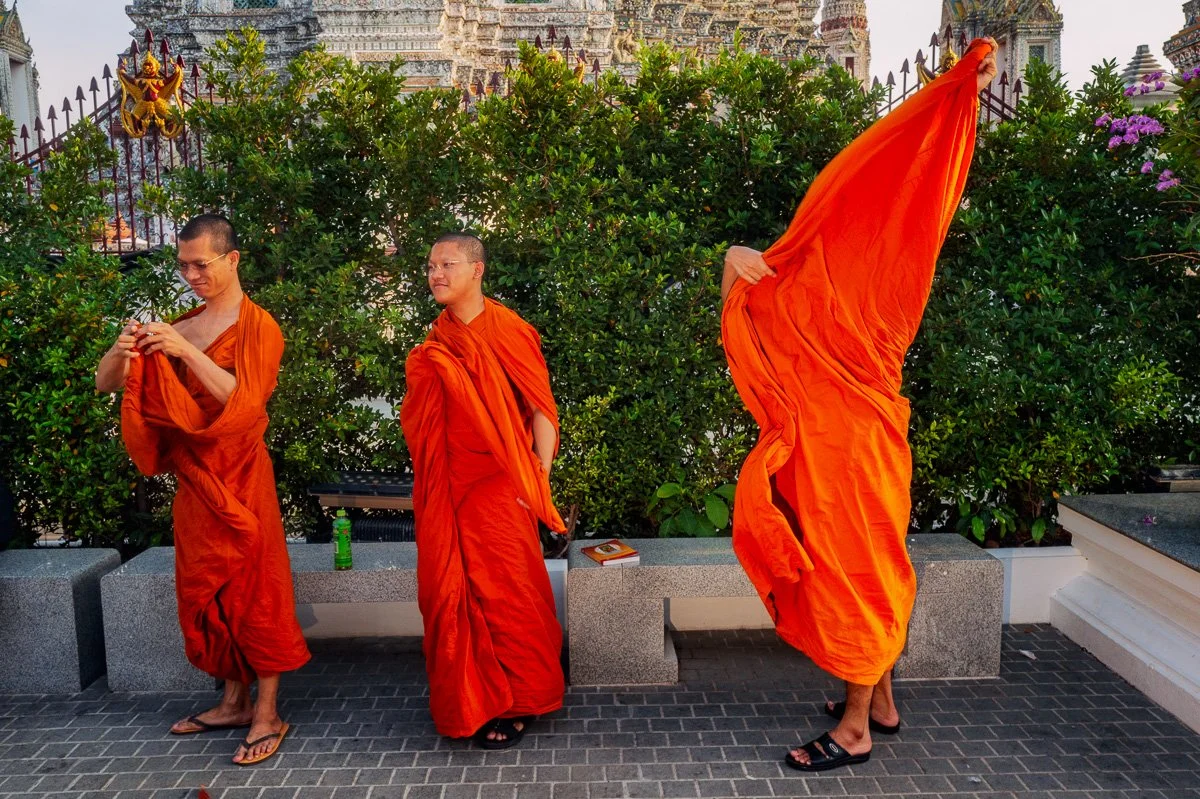
Leica Q3, RAW + Leica Eternal Preset at 65% Opacity (Lightroom Export)
That makes a huge difference. Some Looks work beautifully at full strength, while others - especially the more dramatic ones - can look fantastic when you pull them back a little.
The Big Advantage of RAW Of course, the biggest advantage is that you’re still working with the original RAW file.
Take white balance, for example. If I make a significant white balance adjustment to a RAW image, I can completely change the mood of the photograph while maintaining excellent image quality.
Try making the same adjustment to the in-camera JPEG and things start falling apart much more quickly. That’s exactly why I wanted these Looks to work with RAW files.
You get the starting point and character of the Leica Look, but you’re not locked into the decisions the camera made when it created the JPEG. You still have all the latitude of the RAW file for adjusting white balance, exposure, highlights, shadows and everything else.
For me, that’s the best of both worlds.
A Few of My Favorite Leica Looks
After spending so much time with all of them, there are naturally a few that I keep coming back to.
Teal is one of my favorites for darker, moodier scenes. I especially like how it works with flash and warm color gels. The combination of cooler tones and warm highlights can look fantastic.
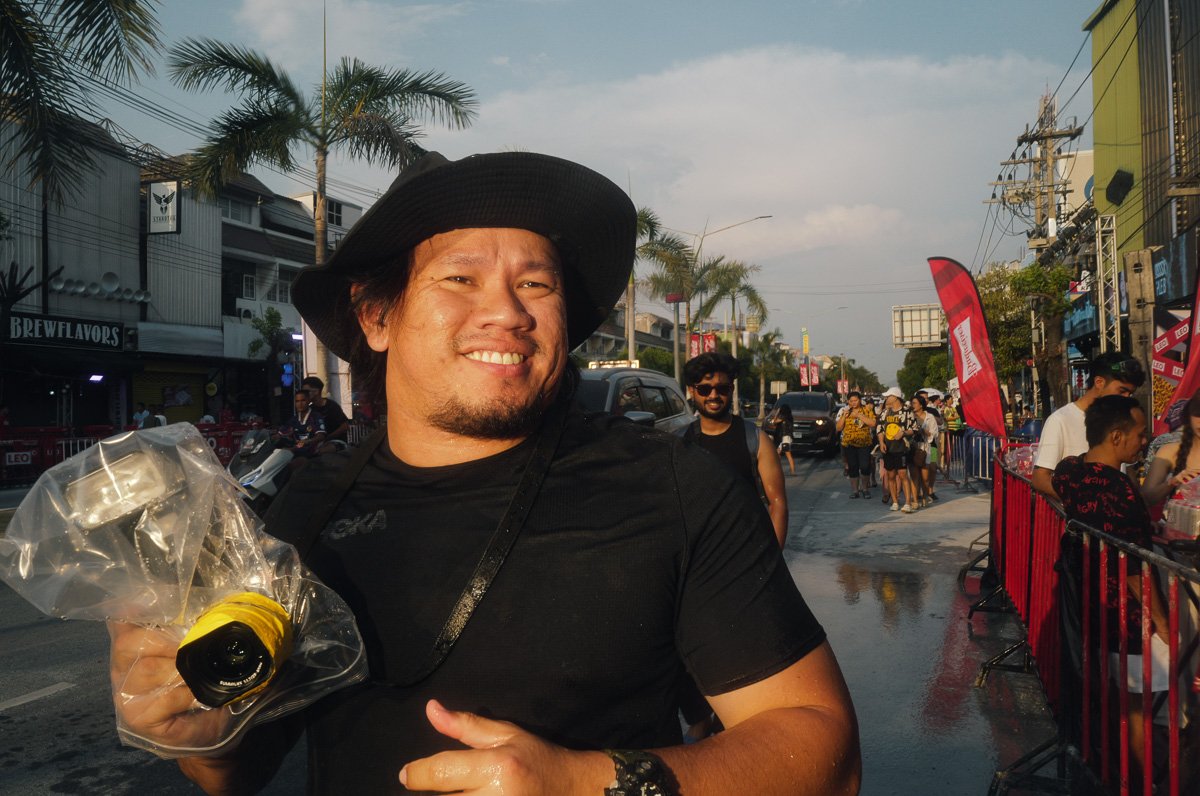
Leica Q3, JPEG, Leica Look Teal (Out of Cam)
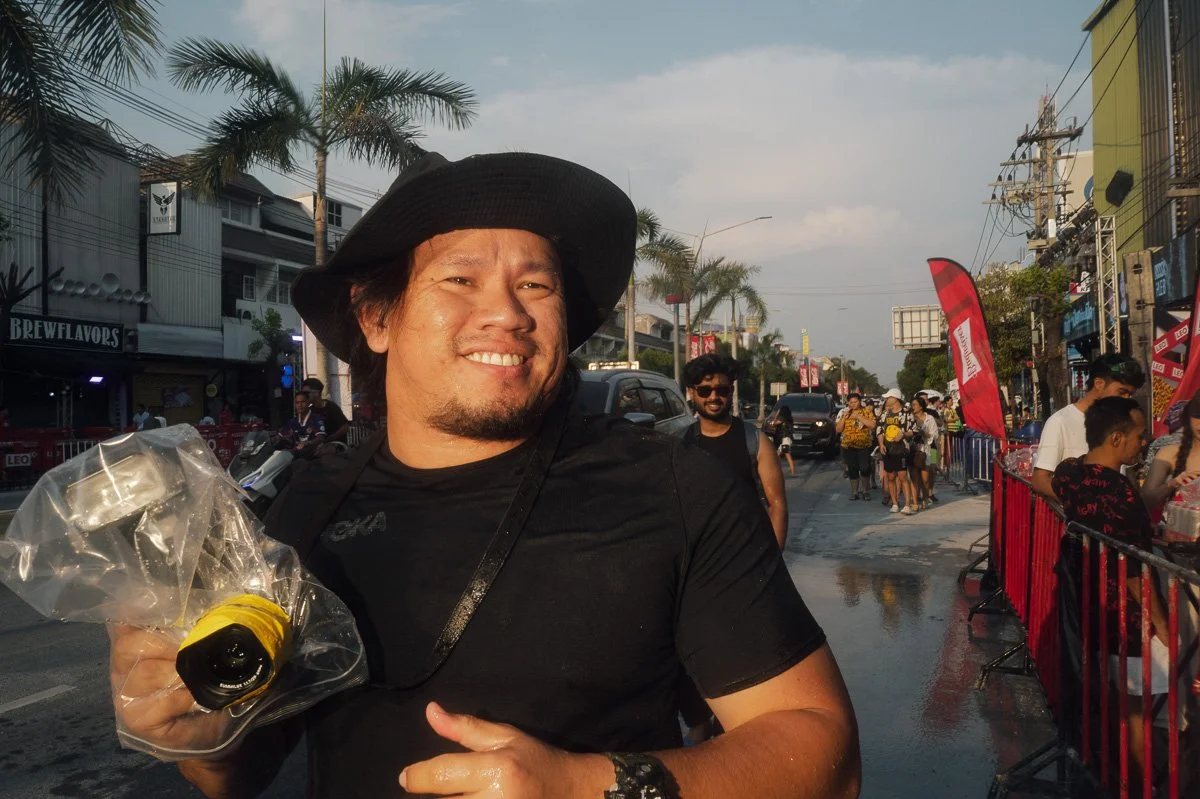
Leica Q3, RAW + Leica Teal Preset (Lightroom Export)
Then there’s Classic, which I absolutely love. It reminds me of color negative film, particularly in the way it handles reds. They have this wonderful punch without completely taking over the image.
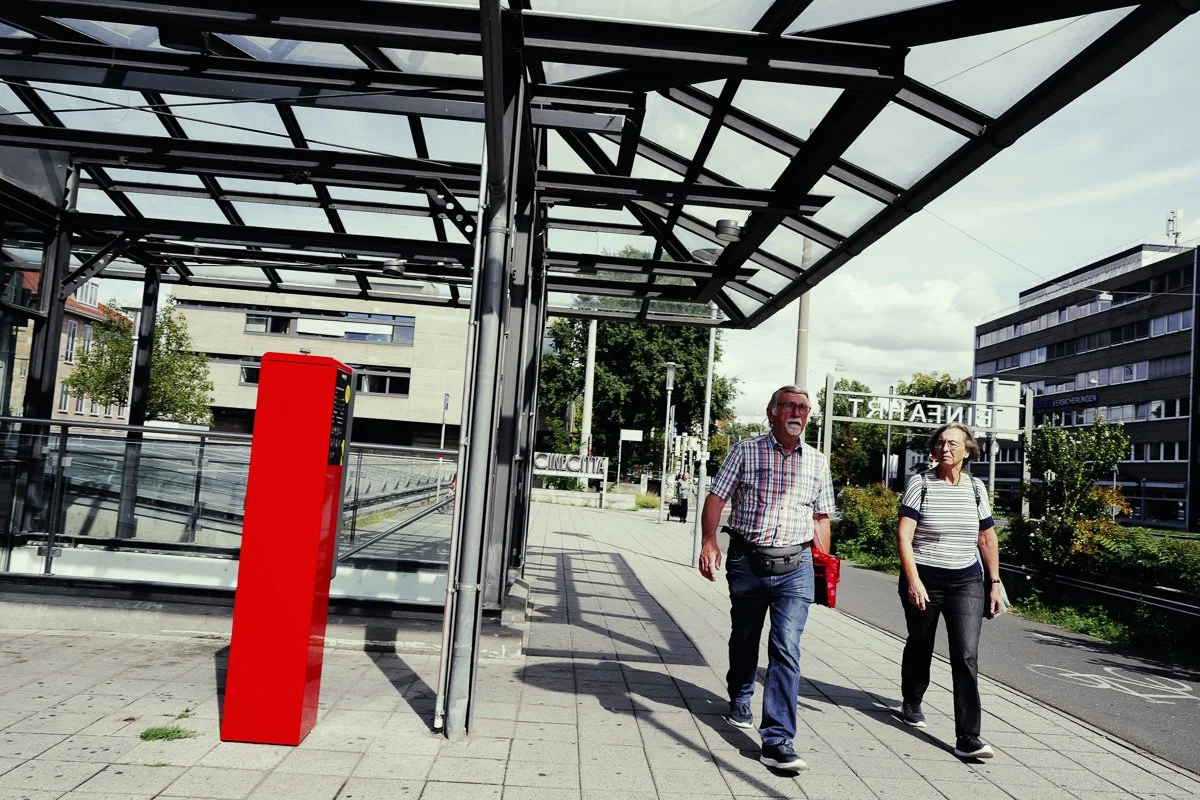
Leica Q3, JPEG, Leica Look Classic (Out of Cam)
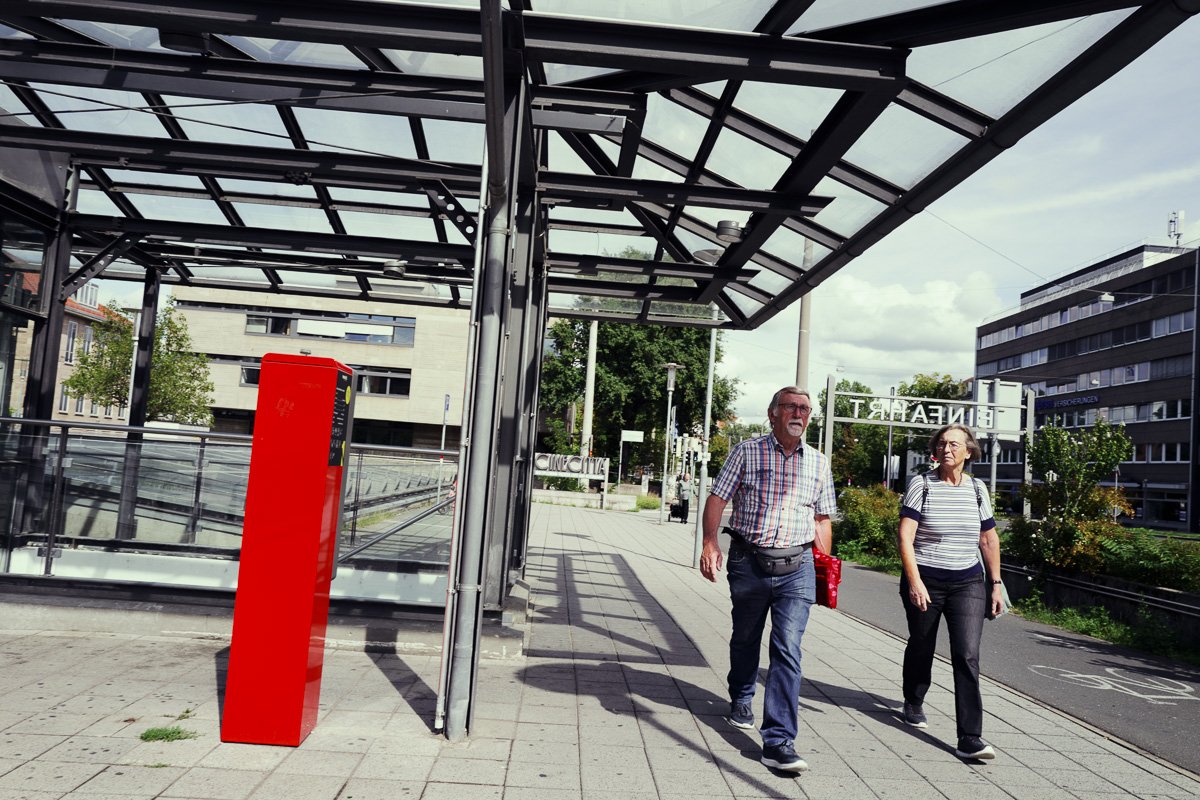
Leica Q3, RAW + Leica Classic Preset (Lightroom Export)
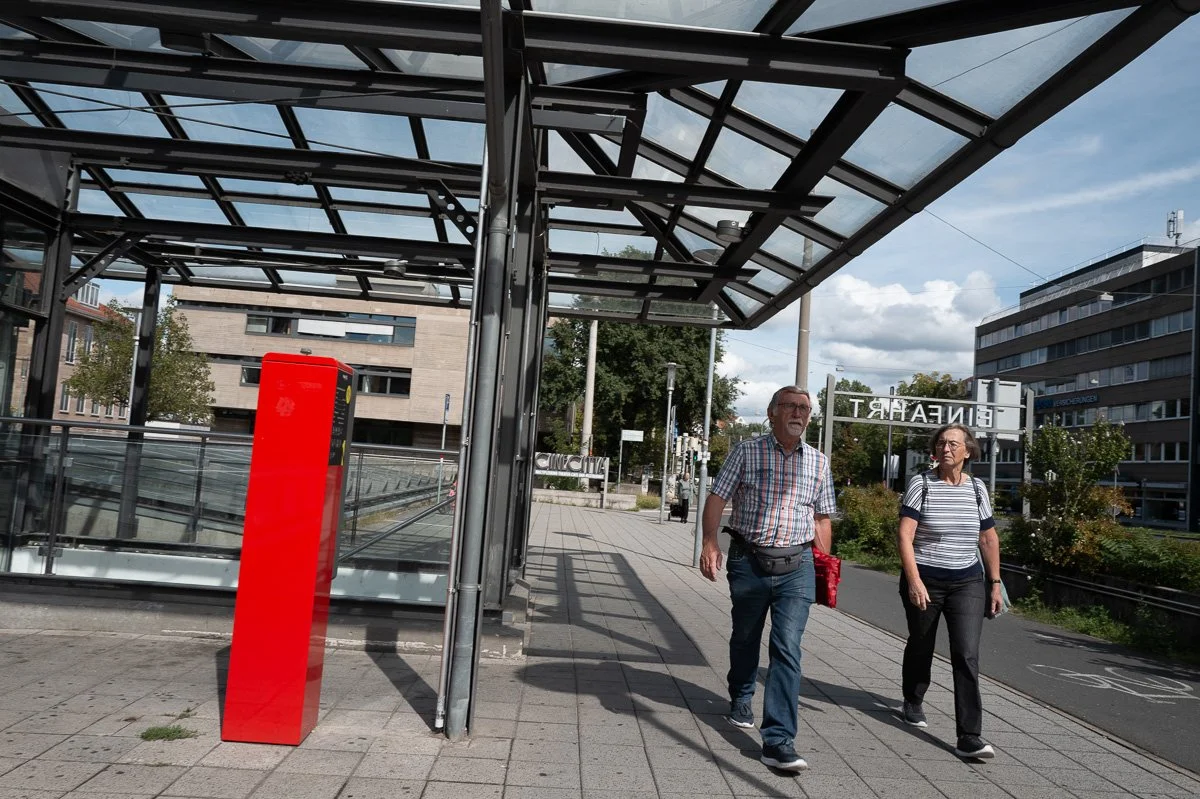
Leica Q3, RAW + Adobe Color (Lightroom Export)
Chrome goes in almost the opposite direction. It’s a much more subtle Look and one that works well when you want something distinctive without making the processing too obvious.
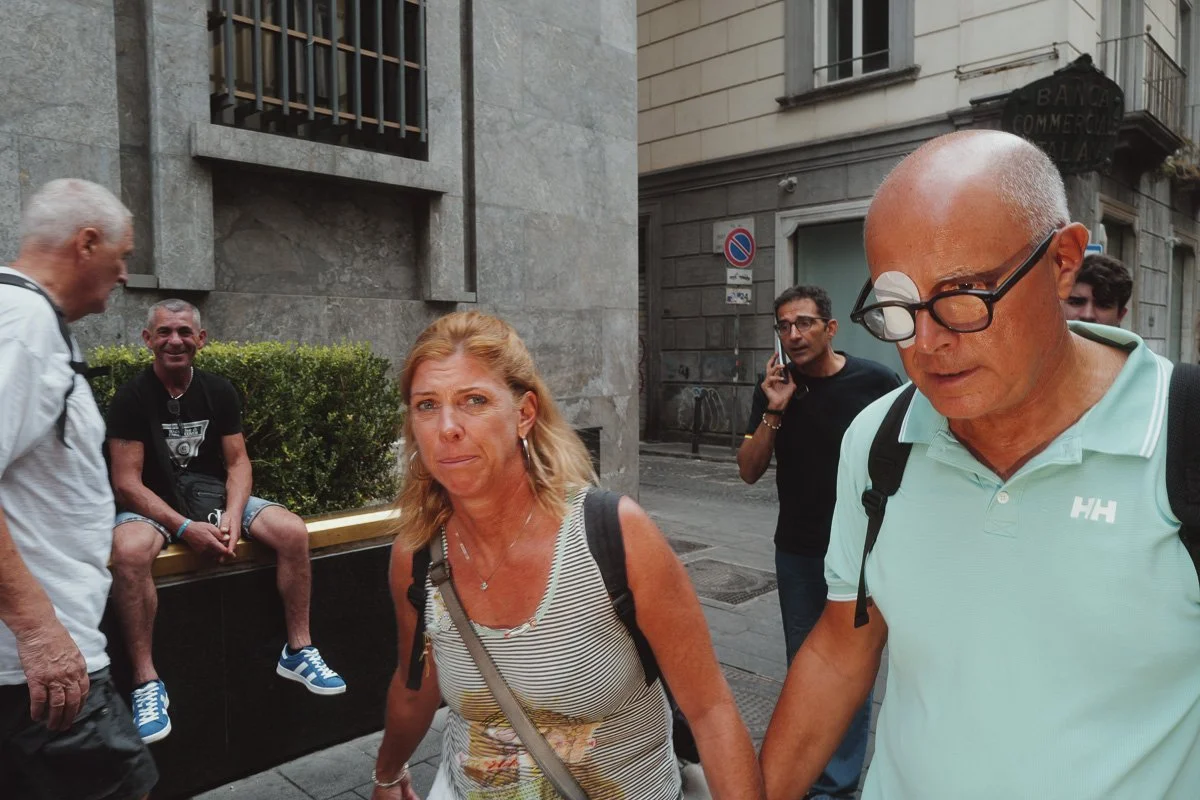
Leica Q3, JPEG, Leica Look Chrome (Out of Cam)
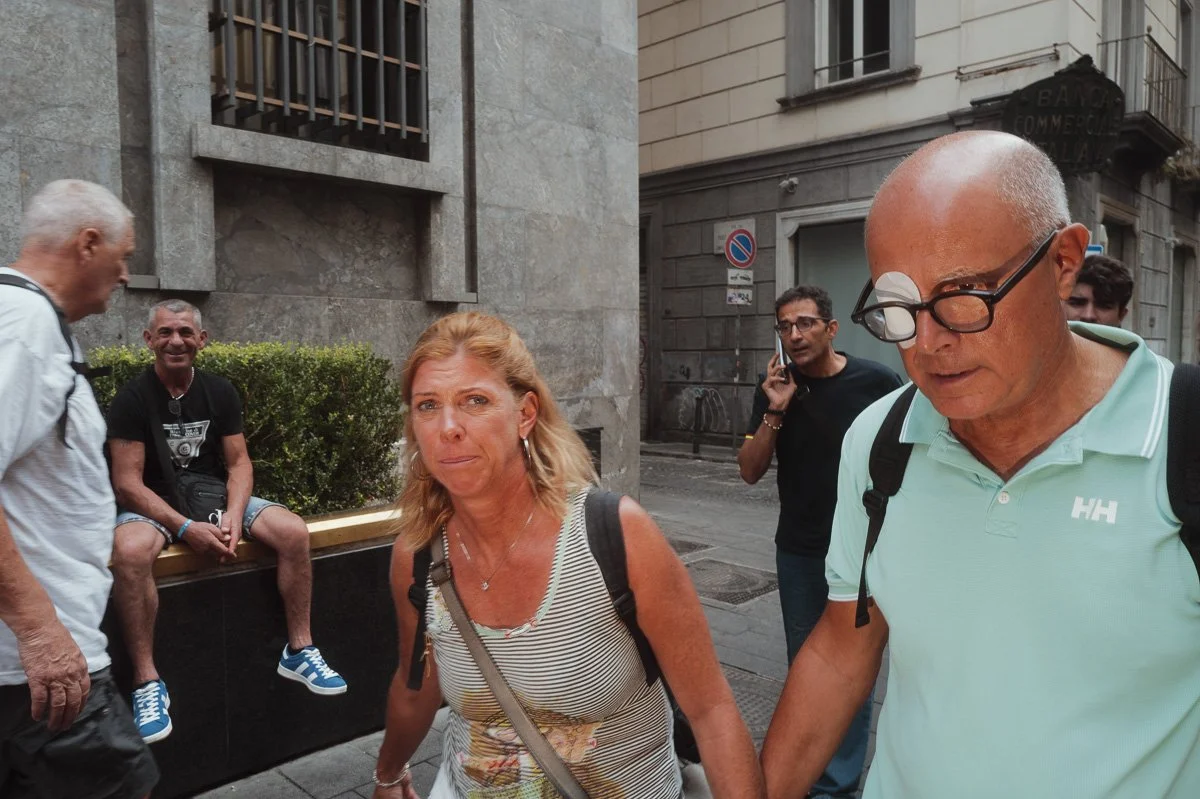
Leica Q3, RAW + Leica Chrome Preset (Lightroom Export)
And then there’s Brass. It adds a beautiful warmth to an image, and I’ve found that it works with an surprisingly wide range of subjects. It has quickly become one of the Looks I reach for most often.

Leica Q3, JPEG, Leica Look Brass (Out of Cam)

Leica Q3, RAW + Leica Brass Preset (Lightroom Export)
Of course, everyone will have their own favorites, and that’s part of the fun of having all of them available.
Compatibility and Installation
The profiles are designed for RAW files and work with:
- Adobe Camera Raw 10.3 or newer
- Lightroom Classic CC 7.3 or newer
- Lightroom CC from the April 2018 update or newer
- Lightroom Mobile for iOS 3.2 or newer
- Lightroom Mobile for Android 3.4 or newer
After downloading the collection, simply unzip the folder and follow the step-by-step instructions in the included PDF installation guide. For Lightroom and Lightroom Mobile, the profiles first need to be installed through Lightroom Classic. For the closest match to the original Leica Looks, I recommend shooting with the camera’s Look set to Standard and without additional Dynamic Range enhancement.
And if Leica releases new Looks - or if I make improvements to any of the existing profiles - those updates will be included free of charge.
Leica Looks and other Camera brands?
The good news is, these looks for Lightroom also work nicely with other cameras. This photo was shot on the Ricoh GRIV and I applied the Leica Looks Presets in Lightroom: 1. Brass, 2. Teal, 3. Chrome, 4. Classic, 5. Contemporary, 6. Eternal (70% Opacity), 7. Cine, 8. Greg Williams, 9. Sepia, 10. Selenium










And Then Leica Released Another One…
Naturally, just as I was getting ready to release the complete collection, Leica introduced another Look.
The newly added Steve McCurry Look isn’t included in the initial collection yet, but I’ll start working on recreating it as soon as I’m back from my trip at some point in November 2026.
I’m planning to add it in an update next month (November), so anyone who already has the collection will receive the new Look as part of that update.
Love the look of Leica Looks but want to keep the flexibility of shooting RAW?
Now you can recreate the Leica Looks in Adobe Lightroom while retaining the full editing flexibility of your RAW files.
This collection currently includes 19 Leica Looks:
Brass, Teal, Chrome, Classic, Contemporary, Eternal, Cine, Pure, Bleach, Silver, Greg Williams, Sepia, Selenium, Blue, Standard, Natural, Vivid, Monochrome, and Monochrome HC.
When new Looks are released or existing Looks are refined, you’ll receive the updates free of charge.
The included color profiles are designed to work with RAW files only. They can be used with Adobe Camera Raw, Lightroom Classic, Lightroom, and the Lightroom mobile app.
To use the profiles in Lightroom and Lightroom mobile, you’ll first need to install them through Lightroom Classic. Please follow the included PDF installation guide for detailed instructions.
The Looks are compatible with all Leica cameras equipped with a color sensor. They also work with RAW files from many other camera manufacturers, allowing you to apply these Leica-inspired Looks to images captured with other camera systems.
Compatible with:
- Adobe Camera Raw 10.3 (April 2018) or newer
- Lightroom Classic CC 7.3 (April 2018) or newer
- Lightroom CC (April 2018 update) or newer
- Lightroom Mobile for iOS 3.2 or newer
- Lightroom Mobile for Android 3.4 or newer
The color profiles require these versions or newer.
Check out my blogpost for plenty of examples: click here
After downloading, unzip the folder and follow the step-by-step instructions in the included PDF installation guide.
If you use the Leica Looks, I’d love to hear which one ends up being your favorite.
Mine keeps changing.